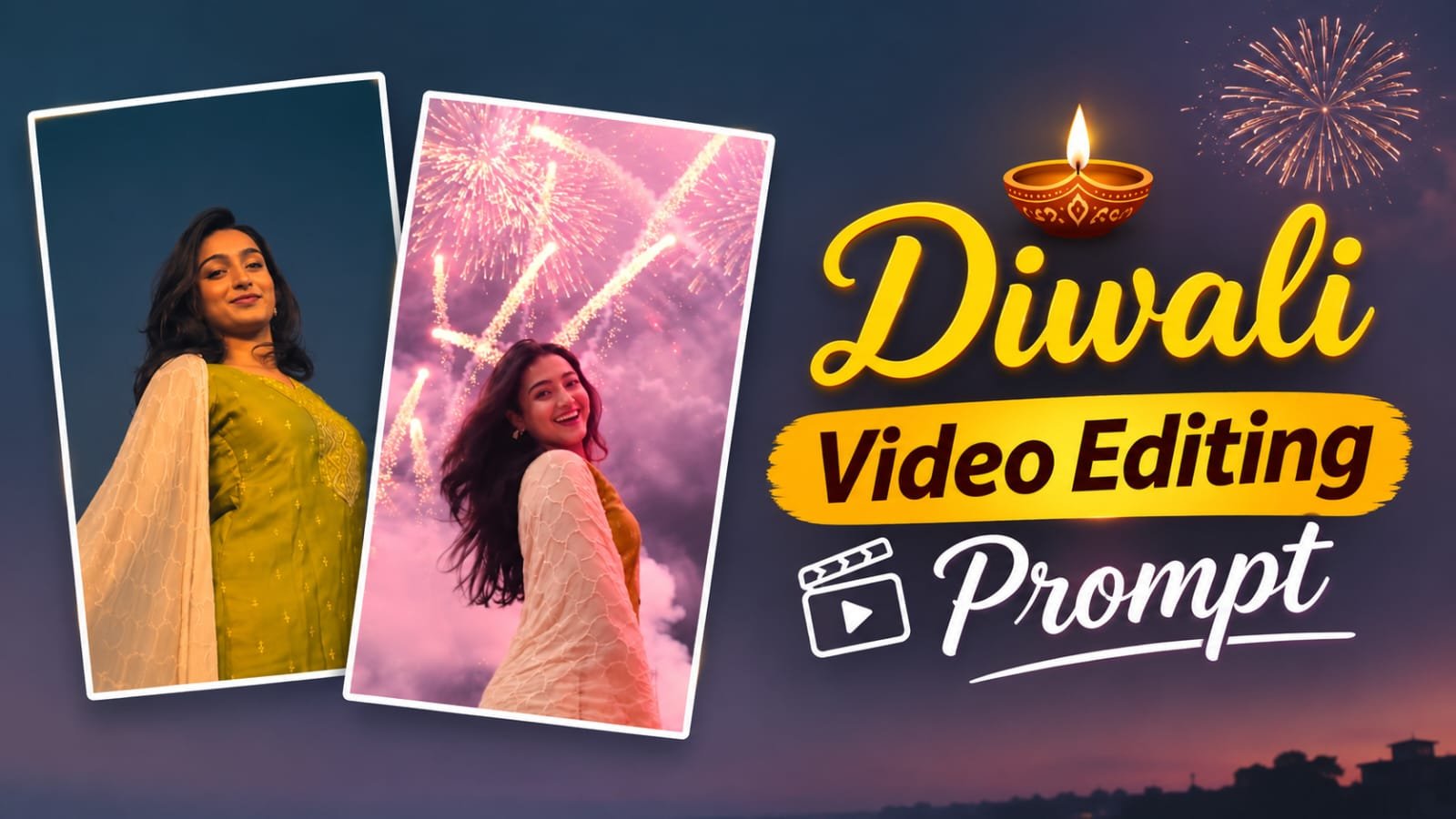
In this article, you have been told about Instagram viral video editing, whose name is Diwali Video Editing Prompt. This video is becoming very viral on social media or Instagram. If you also want to edit, for that you just need your photo with which you can make your video in a few seconds. For that you will need a Diwali Video Prompt with which you can make the video easily. If you also need this prompt, everything has been told to you below, how to edit your video, how to use Diwali Video Editing Prompt 2026, for that you will have to read this article till the end, only then you will understand everything.
How to use Google Flow AI? Learn the complete step-by-step process.
Google Flow AI is an AI video creation tool from Google that allows users to create videos based on text prompts and available image input. To use it, follow the steps below.
Step 1: Open Google Chrome
First, open the Google Chrome browser on your mobile or computer. If you don’t have Chrome on your device, you can use another internet browser.
Step 2: Search for Google Flow AI
Type “Google Flow AI” in Chrome’s search bar and click the Search button. Find Google’s official website in the search results.
Step 3: Open the Google Flow website
Go to Google Flow’s official website, https://flow.google/. Once the website opens, click on the “Get Started” option.
Step 4: Login with a Google Account
Now, sign in with your Google Account. If you’re using this tool for the first time, follow the on-screen instructions. Availability and usage limitations may depend on your account, region, and plan.
Step 5: Create a New Project
After logging in, you may see a New Project or similar option. Click on it to start a new project.
Diwali Video Editing Prompt
Now, write a description for your video in the text box. Include the scenes you want to include, how the camera will move, the lighting, and the look of the video.
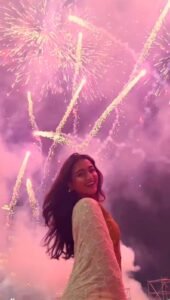
Reference Video
Ai Prompt
Video prompt Use the provided reference video ONLY as a motion,
camera, timing, and performance reference, and use the provided target image as the absolute visual identity reference.
CORE INSTRUCTION
Recreate the video using the person/character from the target image, while accurately transferring the movement and camera behavior
from the reference video. The target image must remain
the source of truth for the character’s appearance.
CHARACTER PRESERVATION ABSOLUTE FRIORITY
Keep the character from the target image exactly consistent throughout the entire video:
Same face
Same facial structure and proportions
Same eyes, eyebrows, nose, lips and jawline
– Same skin tone and
realistic skin texture
Same hairstyle Same hair length, shape.
texture and hairline Same body shape and proportions
Same clothing
Same clothing color. fabric, design and details
Same accessories
Same overall identity and appearance
Do NOT redesign, beautify. replace, modify, age, de-age
or reinterpret the person..
Do not change the outfit or hairstyle even when the body moves.
MOTION TRANSFER Analyze the zeference video
frame-by-frame and reproduce its movement as accurately AG
possible:
Head movement
Facial expressions Eye direction and gase Eyebrow movement
Mouth movement.
Blinking
Neck movement
Shoulder movement
Arm and hand movement Upper-body movement
Walking or body movement
Body posture
Natural weight shifting
Timing and rhythm of movements
Start and end positions of movements
The target character should perform the same actions and
movements as the person in the reference video, while remaining visually identical
to the target image.
CAMERA MOTION TRANSFER Copy the camera behavior from
the reference video: Camera position
Camera angle
Camera distance
Camera height
Camera movement
Handheld movement
Camera shake
Push-in pull-out
Pan tilt
Tracking movement
Framing
Subject positioning
Perspective changes
Movement speed
Do not introduce new camera movements that are not
present in the reference video.
FACIAL PERFORMANCE
Transfer the facial performance naturally and accurately.
Match the reference video’s:
Expression intensity Smile or neutral expression
Eye movement.
Eyebrow movement
Head tilt
Lip movement
Emotional timing
However, never alter the target person’s facial
identity recognizable the exact same person from the target
The face must remain
image in every frame. REALISM
Create highly realistic
motion with natural human.
biomechanics.
Avoid:
Face morphing
Identity drift
Facial distortion
Melting features Unnatural eye movement.
Extra fingers
Missing fingers
Deformed hande
Body warping
Clothing changes
Hair changes
Artificial facial expressions
Rubber like movement Flickering
Frame-to-frame
inconsistency
Hands, arms, face, hair and
clothing must remain anatomically and visually consistent throughout the
video.
TEMPORAL CONSISTENCY Maintain strong frame-to-frame consistency. The character’s:
Face
Hair
Body
Clothing
Accessories
Skin texture
must remain stable throughout the entire sequence.
No random changes between frames
COMPOSITION Maintain the same composition and subject framing as the
reference video wherever possible.
If the reference person moves
closer or farther from the camera, reproduce the same relative movement with the target character.
OUTPUT
Aspect ratio: 9:16 vertical Create a cinematic hut
natural-looking vertical video suitable for TikTok, Instagram Reels and YouTube
Shorts. The final result should look
like the exact person from the target image naturally
performing the exact movement. and camera performance from the reference video.
PRIORITY ORDER
When there is any conflict.
follow this priority: 1. Target image identity and
2. Reference video motion and performance
appearance
3. Reference video camera movement
realism 4. Natural physics and
5. Visual style
Step 7: Choose Video Settings
Select the video model, aspect ratio, and other generation settings from the available options. If you’re creating videos for Instagram Reels or YouTube Shorts, a 9:16 aspect ratio is useful. For regular YouTube videos, you can choose a 16:9 aspect ratio.
Step 8: Click the Generate button
After completing all the settings, click the Generate button. The AI will now create the video based on your instructions. This may take some time.
Step 9: Preview the video
Once the video is ready, play it back. If the result isn’t what you expected, you can modify the prompt and generate the video again.
Step 10: Download the video
If a download option is available with the video, click it to save it to your device. You can then use it as needed.
Conclusion
Friends, you must have liked “Diwali Video Editing Prompt very much, and you must have learned how to use this template, by using this template you too must have learned to edit your video in a very correct way. If you have any problem in using this template, you can ask us through comment, and we will definitely reply.